Workflows & Automation
Workflows define the stages a document request moves through and automate what happens along the way — emails, webhooks, assignments, and status changes. This page is for Owners and Admins, who configure workflows in Settings → Workflows; the rest of your team then works requests on the Kanban board.
Availability and access
- Only Owners and Admins can open workflow settings. Members use the Kanban board but cannot change stages, actions, or rules.
- Go to Settings → Workflows, or click Workflows in the sidebar.
- The Workflows page has four tabs: Visualizer, Stages, Actions, and Transition Rules.
What you can configure depends on your plan:
| Plan | Kanban board | Workflow configuration |
|---|---|---|
| Personal (and free trial) | Included | Rename existing stages only |
| Professional | Included | Full — up to 5 custom stages and 10 automated actions |
| Enterprise | Included | Full — unlimited custom stages and actions |
Rename-only plans
On plans without full workflow configuration, the Actions and Transition Rules tabs are disabled, and you can rename stages but not add, delete, or reorder them.
Workflow stages
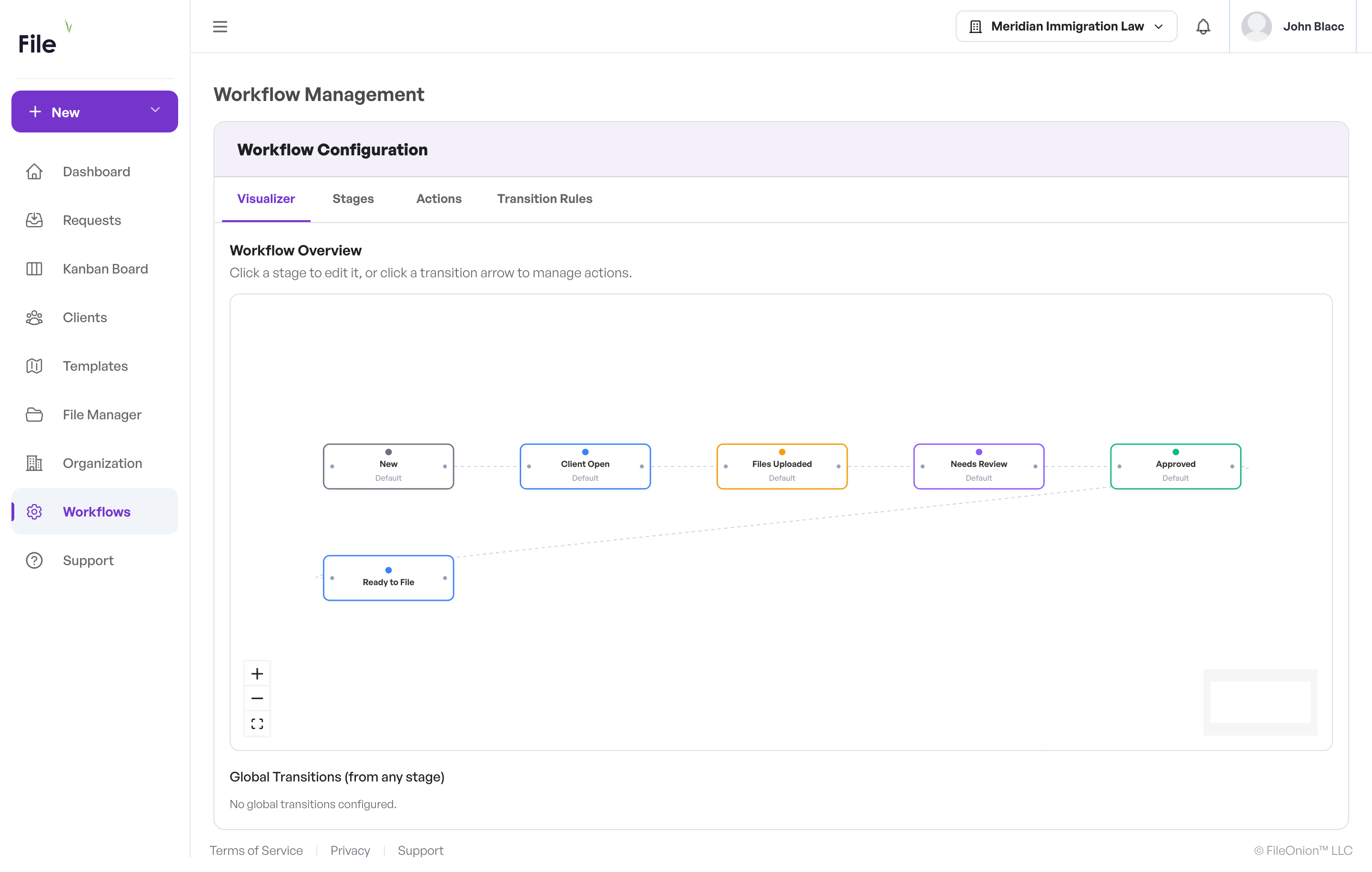
Stages are the steps in your document request process. Every organization starts with five default stages seeded per org — New, Client Open, Files Uploaded, Needs Review, and Approved — each backed by a status, and you can add your own alongside them. Manage stages on the Stages tab.
Creating a stage
- Go to Settings → Workflows and open the Stages tab.
- Click Add Stage.
- Fill in the details:
- Stage Name (required) — for example "In Review", "Client Revision", or "Filed". Up to 50 characters.
- Stage Color (required) — pick from the palette or enter a custom hex color code.
- Position (optional) — where the stage appears in the workflow order. Leave it empty to add the stage at the end.
- Maximum Items (optional) — a work-in-progress limit for the stage. See how limits appear on the board.
- SLA Deadline (optional) — the maximum number of hours a request should stay in this stage before it is flagged. See SLA tracking.
- SLA Warning (optional) — how many hours before the deadline to start showing a warning. Must be less than the deadline.
- Click Create Stage.
Checkpoint
The new stage appears in the Stages list and as a new column on the Kanban board.
Editing a stage
Click the edit icon on any stage in the list, or click a stage node in the Visualizer.
Reordering stages
Drag and drop stages in the Stages list to change their order. The order determines how columns appear on the Kanban board.
Deleting a stage
Click the delete icon on a stage and confirm. All requests currently in that stage are moved to a fallback stage automatically.
Note
Default system stages (New, Client Open, Files Uploaded, and the rest) cannot be deleted.
Automated actions
Actions are operations that run automatically when a request moves between stages. Manage them on the Actions tab.
Action types
| Type | What it does | Example |
|---|---|---|
| Email Notification | Sends an email to one or more recipients | Notify the client when their request is approved |
| Webhook Call | Sends data to an external URL | Update a CRM or trigger a Zapier automation |
| Update Metadata | Changes tags, priority, description, or custom fields | Add a "reviewed" tag when a request reaches Approved |
| Activity Log | Writes an entry to the request's activity history | Record that a request entered legal review |
| Due Date | Sets the request's due date | Set a 14-day due date when a request enters Review |
| Auto Assignment | Assigns the request to a user or team | Route new intakes to your onboarding team |
| Status Update | Changes the request status and metadata | Mark as Approved and stamp the review date |
Note
You may also see Workflow Trigger in the action type list marked "coming soon" — it cannot be configured yet. A few options inside other action types carry the same "coming soon" label; they are noted in the sections below.
Creating an action
- Go to the Actions tab.
- Choose a view with the chips at the top:
- All Actions — every action in one list, with search and type filters.
- By Transition — pick a specific stage transition (for example "Sent → In Review") and manage its actions.
- In the All Actions view, scroll to Add New Action and click one of the cards to open the action form. You can change the action type inside the form.
- Fill in the form:
- Action Name (required) — a descriptive name such as "Send approval email".
- Description (optional) — a brief explanation of what the action does.
- Action Type — one of the types above.
- From Stage — the stage the request is moving from. Choose "Any Stage" to run on every transition into the target stage.
- To Stage (required) — the stage the request is moving to.
- Execution Order — when several actions share a transition, this controls the order (0 runs first).
- Enable this action — turn the action on or off without deleting it.
- Configure the type-specific settings (see the sections below).
- Optionally add conditions so the action only runs in specific cases.
- Click Create Action.
Conditions
Conditions let an action run only when specific criteria are met:
- Turn on Add conditions.
- Add rules such as:
- Priority Equals high
- Tags Contains urgent
- Has Due Date Field exists
- Combine multiple rules by clicking the AND / OR chip between them.
Available operators: Equals, Contains, Greater than, Less than, Field exists, Field doesn't exist.
Fields you can check: Title, Status, Priority, Tags, Client ID, Due Date, Has Due Date, Is Approved, Is Viewed, Is Read.
Email actions
Email actions send notifications when requests move between stages. FileOnion provides pre-built email templates, so you never need to write HTML.
Choosing a template
Select from 10 pre-built templates. Each comes with a default subject line and body text that you can customize.
| Template | Category | When to use |
|---|---|---|
| Stage Transition | Notification | Request moved to a new stage |
| Request Approved | Approval | Request approved |
| Needs Review | Action required | Request needs attention |
| Request Declined | Notification | Request was rejected |
| Reminder / Follow-up | Reminder | Follow-up on a pending request |
| Documents Received | Confirmation | Client uploaded documents |
| Assignment Notice | Internal | Someone was assigned a request |
| Completed | Notification | Request is finished |
| SLA Escalation | Escalation | Request exceeded its SLA |
| Welcome / Onboarding | Onboarding | New client welcome |
Adding recipients
Click Add to add recipients. You can combine multiple types:
| Recipient type | Who receives the email |
|---|---|
| Client | The client associated with the request |
| Request Owner | The user who created the request |
| Assignee | The currently assigned team member |
| Custom email | Any email address you type in |
Recipients appear as chips that you can remove individually.
Subject, body, and variables
Edit the default subject line and body text, and click the variable chips to insert dynamic values at your cursor position. Variables are replaced with real values when the email is sent.
| Variable | Inserts | Example |
|---|---|---|
{{clientName}} |
Client's name | "Jane Doe" |
{{requestTitle}} |
Request title | "Q1 Tax Filing" |
{{requestId}} |
Request ID | "abc-123" |
{{tenantName}} |
Your organization name | "Acme Legal" |
{{stageName}} |
Target stage name | "In Review" |
{{currentYear}} |
Current year | "2026" |
{{requestLink}} |
Link to the request | Clickable URL |
{{portalLink}} |
Link to the client portal | Clickable URL |
{{supportLink}} |
Link to the support page | Clickable URL |
Colors and preview
- Header Color — the colored bar at the top of the email.
- Body Color — the background of the email body.
- Click the eye icon next to "Email Preview" to see a live preview with your template, body text, and colors applied. Variables show as placeholder labels (for example
[Client Name]) in the preview.
Webhook actions
Webhook actions send HTTP requests to external systems when a transition occurs.
Configuration
- URL (required) — the endpoint to call, for example a Zapier or Make webhook URL.
- Method — POST, PUT, or PATCH.
- Auth Type — choose from:
- None — no authentication.
- Bearer — adds an
Authorization: Bearer <token>header. - Basic — username and password.
- API key — a custom header name with a key value.
- OAuth2 — client-credentials flow with token URL, client ID, client secret, and scope.
- Custom Headers — additional HTTP headers as key-value pairs.
- Request Payload (JSON) — a custom JSON payload to send, merged with the default request data.
- Include request data — include the request's details in the payload (on by default).
- Retry — off by default. Turn it on to retry failed calls, and set Max Retries and the Delay (seconds) between attempts.
Common uses
- Trigger a Zapier, Make, or n8n automation.
- Update a CRM when a request changes stage.
- Post to a chat channel through an incoming webhook.
- Sync with an external document management system.
See Integrations for more on connecting FileOnion to other tools.
Update metadata actions
Update request properties automatically when a transition occurs. For each field you add, choose what to change:
- Tags — add or remove a tag.
- Priority — set a new priority level.
- Description — replace the request description.
- Custom field — set any field by name.
Example: add a "reviewed" tag whenever a request moves into Approved.
Activity log actions
Write an entry to the request's activity history when a transition occurs. Configure the message and a log level (Info, Warning, or Error). Use this to record compliance checkpoints — for example, "Entered HIPAA review".
Due date actions
Set the request's due date automatically:
- Set new due date — sets the due date to a number of days from now. Enter the days offset (for example, 14 sets the due date two weeks out).
Note
The Extend existing and Create reminder operations appear in the list marked "coming soon" and can't be selected yet.
Auto-assignment actions
Automatically assign requests when they enter a stage.
| Option | How it works |
|---|---|
| Specific User | Always assigns to the team member you specify |
| Team | Assigns to a team; a team member picks it up |
- Notify assignee — send an email notification to the assigned person (off by default).
Note
Auto Assign, Round Robin, and Workload Based strategies appear in the list marked "coming soon" and can't be selected yet.
See Teams, Assignment & Sharing for how assignment affects who can see a request.
Status update actions
Update the request's status and metadata when a transition occurs:
- New Status — change the status to Sent, Read, Partial, NeedsReview, Approved, Closed, Expired, or Archived. Choose "No change" to leave the status alone.
- Update Fields — add custom key-value pairs to set on the request (for example,
reviewDate=2026-01-15). - Update external systems — propagate the change to connected systems (off by default).
Transition rules
Transition rules control who can move requests between specific stages. Manage them on the Transition Rules tab.
Default behavior
When no rules are configured, all transitions are allowed for any user with write access. Adding rules restricts moves. Once any rule exists for a stage, moves out of that stage are only allowed along transitions you have configured.
Creating a rule
- Click Add Rule.
- Select the From Stage and To Stage.
- Configure:
- Transition allowed — toggle to allow or block this move.
- Requires approval — when on, the move cannot be completed with a simple drag on the board; the board shows an approval message instead.
- Required Roles (optional) — click role chips to restrict who can perform the move (Owner, Admin, Member).
- Click Create Rule.
Examples
| Rule | Effect |
|---|---|
| Sent → Approved: Blocked | Requests can't skip directly to Approved |
| Review → Approved: Allowed, Admin only | Only Admins can approve requests |
| Any → Closed: Requires approval | Closing a request can't be done with a drag |
| Partial → In Review: Allowed, all roles | Anyone can escalate partial requests for review |
Managing rules
- Click the Allowed/Blocked chip on a rule to toggle its state.
- Click the Approval Required chip to toggle the approval requirement.
- Click role chips to add or remove role restrictions.
- Click the trash icon to delete a rule.
For how blocked moves look to your team, see blocked moves on the Kanban board.
SLA tracking
SLA (service level agreement) tracking helps ensure requests don't stall in any stage.
Setting up SLAs
When creating or editing a stage, set:
- SLA Deadline (hours) — the maximum time a request should stay in the stage. After this time, the request is flagged as breached.
- SLA Warning (hours) — when to start showing a warning. Must be less than the deadline.
How it looks
On the Kanban board, request cards show SLA indicators:
| Indicator | Meaning |
|---|---|
| Green dot | Within SLA — plenty of time remaining |
| Amber dot + "Xh remaining" | Warning — approaching the deadline |
| Red dot + "SLA breached" | Breached — the deadline has passed |
An escalation recipe
Combine SLA tracking with an escalation email:
- Create an email action using the SLA Escalation template.
- Set it on the transition into your review or escalation stage.
- Add a condition such as Priority Equals high to escalate only priority requests.
The Workflow Visualizer
The Visualizer (the first tab in Workflow settings) is an interactive diagram of your entire workflow:
- Stage nodes — each stage appears as a card with its name, color, and SLA settings.
- Transition arrows — solid arrows show transitions with configured actions (with action counts); dashed arrows show the sequential stage order.
- Navigation — zoom, pan, and use the minimap to move around larger workflows.
- Interactive — click a stage to edit it, or click a transition arrow to manage its actions.
- Global transitions — below the diagram, see transitions that apply from "any stage" into specific stages.
Managing existing actions
All Actions view
The All Actions view is a bird's-eye view of every configured action:
- Search — type to filter actions by name.
- Filter by type — click type chips (email, webhook, and so on) to filter the list.
- Each action shows its name, a type badge, the From → To transition as color-coded stage chips, a condition count, an active/inactive toggle, and edit and delete buttons.
- Use the toggle switch to activate or deactivate an action without opening the form.
By Transition view
The By Transition view manages actions for one specific stage transition:
- Pick a target stage from the grid.
- Select the source stage (or "Any Stage").
- Review the actions for that transition, listed in execution order.
- Drag and drop to reorder them.
Permissions
| Capability | Owner | Admin | Member | Client |
|---|---|---|---|---|
| View the Kanban board | Yes | Yes | Yes | No |
| Move requests (drag and drop) | Yes | Yes | Yes* | No |
| Configure stages | Yes | Yes | No | No |
| Configure actions | Yes | Yes | No | No |
| Configure transition rules | Yes | Yes | No | No |
| View the Workflow Visualizer | Yes | Yes | No | No |
*Members can be further restricted by transition rules. Clients never see the board — they upload through the client portal.
FAQ
How do I set up a workflow from scratch?
- Go to Settings → Workflows and open the Stages tab.
- Create the stages that match your process, and set colors, order, and SLA times.
- On the Actions tab, add automated actions for key transitions — for example, email the client on approval.
- Optionally add Transition Rules to control who can perform specific moves.
- Your team can now manage requests on the Kanban board.
Can I have multiple actions on the same transition?
Yes. Add as many as you need (within your plan's action limit). They run in the order set by their execution order number.
What happens if an action fails?
Action failures don't block the stage transition — the request still moves. Failed actions are logged for review, and webhook actions can be configured with automatic retries.
Can I test an action before using it?
For email actions, use the preview to see how the email will look. For webhook actions, test the endpoint separately first. Actions run in the background after a transition, so they never slow down the move itself.
How do I restrict who can approve requests?
Create a transition rule for the move into your approval stage. Set it to Allowed with Required Roles limited to Admin or Owner.
What happens to requests if I delete a stage?
All requests in that stage are automatically moved to a fallback stage. You are asked to confirm before the deletion happens.
Can I undo a stage transition?
You can drag the request back to its previous stage if transition rules allow it. The original transition's actions will already have run and are not reversed automatically.
How do email template variables work?
Variables like {{clientName}} are placeholders replaced with real values when the email is sent — {{clientName}} becomes the client's actual name, and {{requestLink}} becomes a clickable link to the request.
Can I send emails to multiple recipients?
Yes. Click Add to combine role-based recipients (Client, Request Owner, and Assignee) with custom email addresses.
What is the difference between the All Actions and By Transition views?
All Actions shows every action across all transitions — best for searching, filtering, and managing actions globally. By Transition shows the actions for one specific move — best for ordering and configuring the actions within that transition.
Related
- Kanban Board — where your team moves requests through these stages
- Teams, Assignment & Sharing — control who can see and edit requests
- Requests — creating and sending document requests
- Integrations — connect webhooks to Zapier, Make, and n8n