The Client Experience
This page shows your firm what clients see and do after you send a request, so you can set expectations and support clients confidently. Nothing here requires your client to create an account, install anything, or remember a password.
What the client receives
When you send a request, FileOnion notifies the client through their contact channel — email, text message (SMS), or WhatsApp — with a secure magic link to their request page. The link is unique to that client and that request.
When sending, you choose how the link behaves:
- With magic link — clicking the link opens the request directly. This is the standard flow.
- With secure magic link — before the request opens, the client must enter a one-time verification code. Use this for sensitive matters.
- Without magic link — the client is notified without a direct-access link (available when enabled for your firm).
Clients with no email address always get the secure link
A client you added with only a mobile number receives their request by text, and FileOnion always sends them the secure variant — tap the link, enter the one-time code that arrives by text, portal opens. Your choice above is overridden for them on purpose: a plain link is not something they could sign in from. See Clients without an email address.
If the notification fails to deliver, FileOnion warns you at send time ("Your request was published, but the … notification couldn't be sent") so you can resend it — see the FAQ below.
Opening the request
The client clicks the link and lands on the request page — no sign-up, no password. They see:
- Your request title and details, with your firm's message.
- A Files summary: how many files are requested, and a running count of how many have been submitted for review, approved, and declined.
- A list of every document you asked for, each with its own status.
Below the list, each document has its own section where the work happens.
The upload flow
For each requested document, the client sees:
- The document name.
- Your Message — the description you wrote explaining what you need.
- A Checklist/Sub-tasks list, if you added one — the specific items to include.
- An Attachments area to add files.
- A Submit for review button.
The client uploads one or more files to a document, removes any mistaken upload (with a confirmation, since deletion can't be undone), and clicks Submit for review. Each document is submitted on its own, so a client can send you the easy items today and the rest later.
Checkpoint — what a client sees after submitting
The document's section is covered by a large "Submitted!" confirmation, and its status in the document list changes to Submitted. The client can no longer change that document unless they click Edit on it, or you decline it.
Statuses the client sees
Each document carries one of these labels on the client's page:
| Status | Meaning for the client |
|---|---|
| Needs attention | Nothing submitted yet, or changes are still needed — this document is open for uploads. |
| Submitted | Sent to your firm and awaiting review. |
| Approved | Accepted by your firm. The document locks with an "Approved!" confirmation. |
| Declined | Rejected by your firm. The document reopens so the client can upload a corrected file and resubmit. |
A document your firm closes shows a "Closed!" notice and no longer accepts changes. If you archive the request or it passes its expiry date, the link stops accepting uploads.
The client's page updates live — a comment you post or a decision you make appears on their screen without them refreshing.
What clients see from auto review
If Auto review is on for a request, your client sees FileOnion's read on their own uploads within seconds of sending them. On each file they get a short label — Looks good, Please check, Wrong document, or Not checked — and a one-sentence plain-language explanation written for them, such as "This looks like a utility bill rather than a W-2 — please upload your 2023 W-2."
Each document also gets a What we need strip showing your checklist with each item marked received, still needed, or please re-upload, and an overall status of All received, Partly received, Please check, or Not received yet.
This is deliberate: it lets a client fix an obvious mistake immediately instead of waiting for your review. Clients never see your rollup counts, review workspace, or anything about usage or billing.
Nothing is claimed until something is checked
If auto review hasn't evaluated a document, the client simply sees a neutral list of what to send — no receipt labels at all. A firm with auto review switched off never tells a client a file is missing when they already sent it.
Clients who prefer Spanish
Set a client's Portal language to Spanish (see Clients) and everything they receive arrives in Spanish: the request email and its magic link, reminders, approval and decline notices, comment notifications, file-shared notices, and workflow emails — plus the upload portal itself. Text messages are in Spanish too — new-request, file-approved, file-declined, and new-comment texts, and the invite text a phone-only client receives. Your firm's own interface is unaffected. Invitation emails and email-verification messages are still sent in English.
Reminders, due dates, and expiry
These are set per request when you compose it (see Requests):
- Reminders — FileOnion automatically emails the client on the schedule you pick, so you don't have to chase them manually. Reminders go by email only, so a client with no email address on file doesn't receive them — resend the request to text them a fresh link instead.
- Due date — the deadline you communicate to the client.
- Expiry date — after this date the request link no longer accepts uploads.
Client comments and questions
Clients can open an uploaded file and use its Comments panel to ask questions or leave context ("this is the 2024 return — 2023 is still with my accountant"). Comments appear for your team on the same file inside the request, and update in real time while both sides have the page open. Team members can be notified of new comments — see notification settings in User configurations.
Shared files
Collection isn't one-way. Your firm can share files and folders back to a client — completed filings, engagement letters, statements — and they appear in the client's Shared files area. Each shared item shows who shared it, when, the file size, and an optional message from your team. The client can View the file in the browser or Download it. Folders expand to show their contents.
Until you share something, the client sees "No shared files yet — files shared with you will appear here."
See Sharing files with clients for how to share files and folders back to a client.
How share notifications reach the client
When you leave Send email notification on, the client gets an email that deep-links straight to their shared files. That link is always secure: before the portal opens, the client must confirm a one-time code, sent by their notification preference — email, SMS, or WhatsApp. If a secure link can't be minted, the email falls back to the plain portal URL, so a share is never blocked.
For a client with no email address, the share dialog replaces that checkbox with a line explaining what will happen instead: "This client receives text messages, not email — shared files will appear in their portal." The share itself works normally; only the notification is skipped, so mention it to them the next time you're in touch.
Optional client sign-in
The magic link is all a client ever needs. But clients who work with your firm repeatedly can also sign in to FileOnion, which gives them a persistent dashboard.
The client dashboard is now a full-width, attention-first layout: a "Your requests" hero shows what your firm is waiting on, alongside a "Shared with you" rail of files your firm has sent back. The rail is hidden when file sharing is off for your firm.
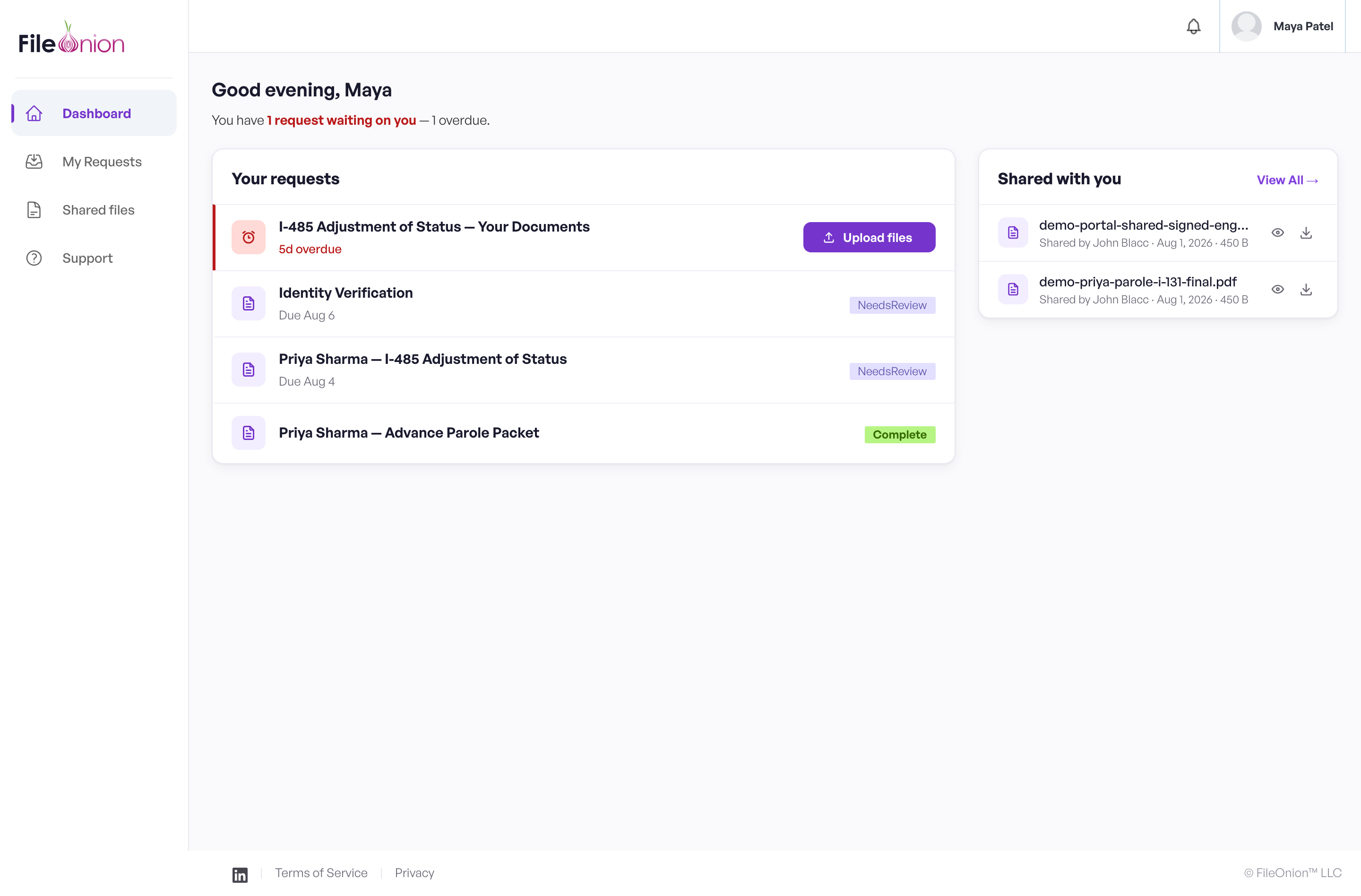
From the dashboard, signed-in clients get two persistent pages:
-
My Requests — every request your firm has sent them, with search and a segmented triage filter: Needs action, In review, Done, and All. Items waiting on the client are surfaced first, so what needs their attention sits at the top, and a header line summarizes the position — "1 waiting on you · 0 complete". Anything overdue carries a red rail and an Upload files button.
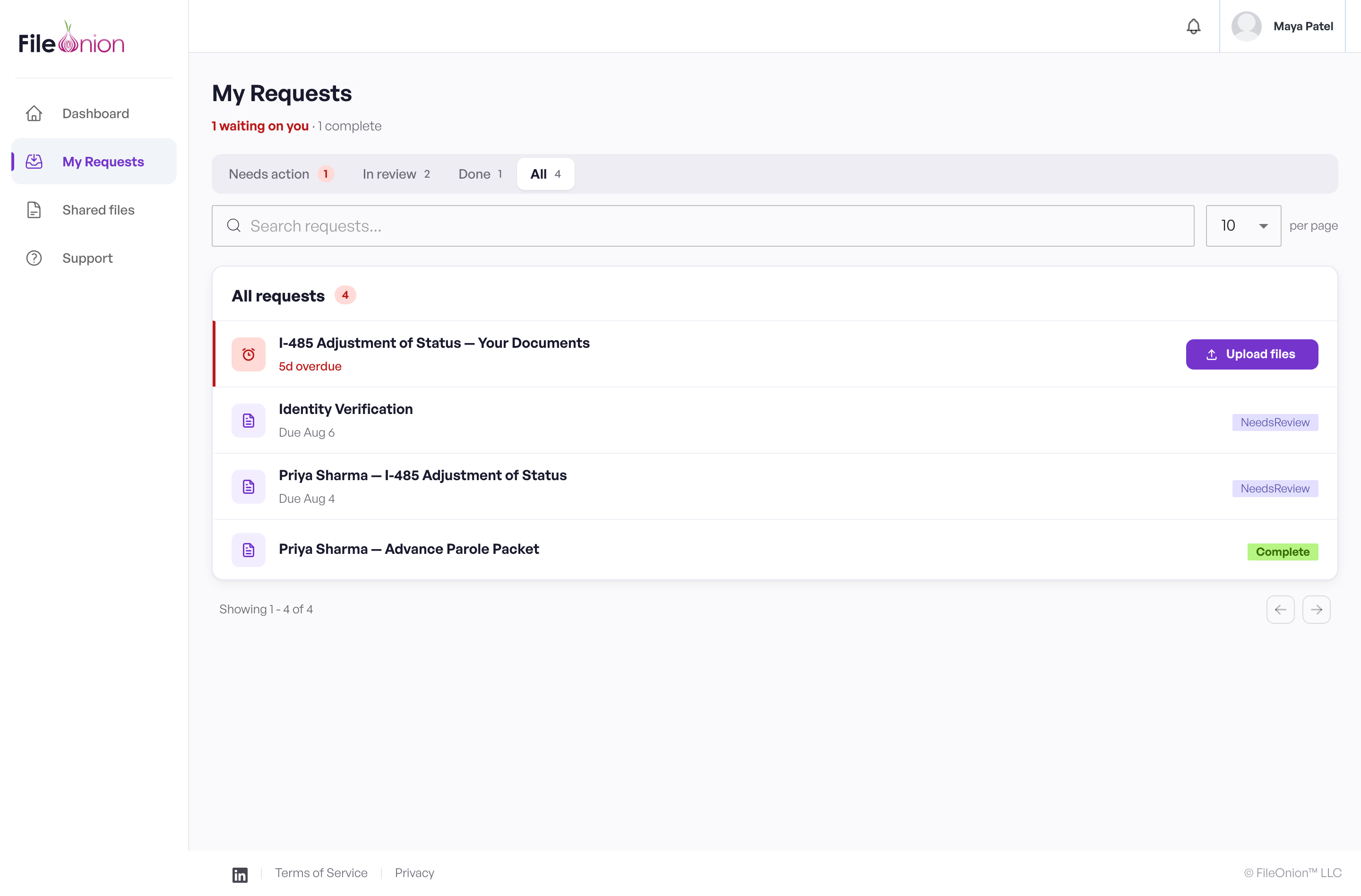 - Shared files — everything your firm has shared with them, searchable, with a folder view or a flat list. (On the dashboard the same content appears as the Shared with you rail.)
Signed-in clients see only their own requests and documents from your firm.
Notifications in the portal
Signed-in clients have a notification bell in their portal header, with a live unread count. New comments and document decisions land there — when your firm approves or declines a document, the client gets a row saying so, grouped by day, with All/Unread filters and Mark all read. Clients never get a notification for their own actions.
Signed-in clients can also update their own details — name, phone, and text-message consent — from a simplified Your details settings page.
A client with no email address sees two guardrails there, so they can't accidentally lock themselves out: their phone number is required ("A phone number is required — text messages are how you sign in and get notified"), and where an email would sit they're told "You sign in with text-message links. Ask your document team to add an email address."
Custom branding
On the Professional plan and above, Owners and Admins can apply your firm's logo and brand colors from Organization → Branding, so the experience clients see carries your identity rather than a generic look.
FAQ
The client says their link is expired or invalid. What do we do?
Links can expire for security. Resend a fresh one: open Requests, find the request, open its row menu, and choose Resend Request (or Resend Secure Link for the code-protected variant). The client gets a new notification with a working link. The client-side error reads "Your link is either invalid or expired."
Can one client see another client's files?
No. Every link is scoped to a single client and a single request, and all data is isolated to your firm. A client sees only the requests you sent to them and the documents you shared with them — never another client's, and never another firm's.
Does the client need to install anything or create an account?
No. The request page works in any modern browser on desktop or mobile. Signing in is optional and only adds the persistent My Requests and Shared files pages.
One of our clients has no email address. Can they still use FileOnion?
Yes. Add them with just a name and a mobile number and they'll receive requests by text and sign in with texted links plus a one-time code — the portal, uploads, comments, and shared files all work exactly the same. Two things don't reach them: automatic reminders and file-shared notifications, both of which are email-only. If they get an email address later you can add it to their record without losing any history. See Clients without an email address.
Can a client fix a file they already submitted?
Yes. On a submitted document they can click Edit to reopen it. If your firm declines a document, it reopens automatically with a Declined status so the client can upload a replacement and resubmit.
Related
- Requests — composing and sending requests
- Clients — managing client records and sharing documents
- Tutorial: Client uploads — the client journey, step by step
- Tutorial: Review and approve — what your team does with submissions